Key Steps
- Access Flows in Salesforce:
- Go to the Flows section in Salesforce.
- Create a new flow or edit an existing one.
- Prepare Trigger and Gift Information:
- Determine the trigger for sending a gift from Corporate Gift.
- Identify the specific gift or campaign to be sent.
- Decide on the budget to pay for the gift.
- Retrieve Gift and Budget IDs:
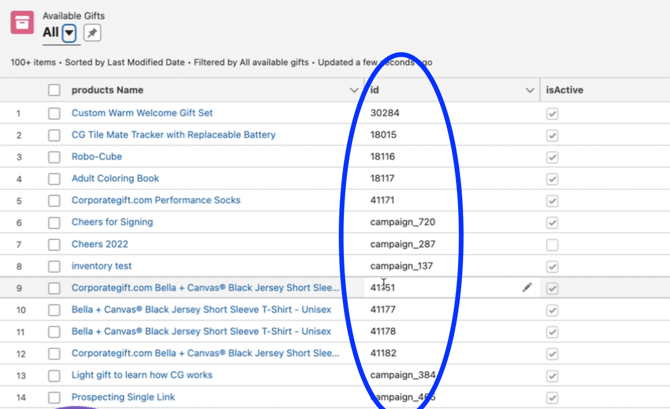
- In the app launcher, navigate to the available gift section to find and copy the gift ID.
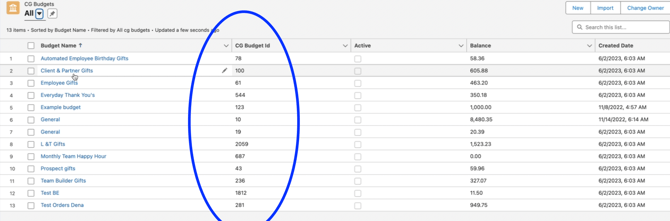
- Locate the CG budgets section to select and copy the budget ID.
- In the app launcher, navigate to the available gift section to find and copy the gift ID.
- Set Up Flow Trigger:
- Return to the flow and set up a trigger based on the object (e.g., lead, contact).
- Define trigger conditions (e.g., status) for gift sending.
- Add Send Gift Action:
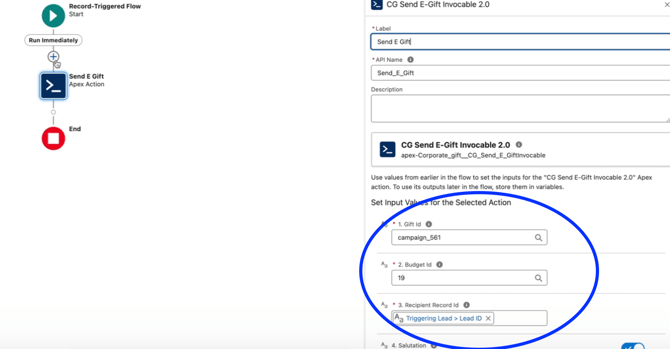
- Search for and add the "send e-gift" or "send gift" action.
- Enter the necessary information:
- Label: send_e_gift
- Gift ID: Paste the copied gift ID from available gifts.
- Budget ID: Paste the copied budget ID from CG budgets.
- Customize gift message, email subject line, and other settings as needed.
- Save and Publish Flow:
- Save the flow and ensure it is published to automate the gift sending process.
Cautionary Notes
- Ensure accurate copying of the gift and budget IDs to prevent errors in automation.
- Double-check trigger conditions and gift details before saving the flow.
Tips for Efficiency
- Keep a record of gift and budget IDs for easy reference during flow setup.
- Test the flow with sample data to confirm successful automation before full implementation.
Sending Gifts to Multiple Records (Important Limitation & Solution)
Currently, when using the CorporateGift Flow actions (e.g., Send E-Gift or Send Physical Gift) with multiple records at once, only the first record in the collection will receive the gift.
This happens because the action expects a single record, not a collection.
✅ How to Send Gifts to Multiple Contacts/Leads
To send gifts to multiple recipients, you must use a Loop element in your Salesforce Flow. The loop ensures the action runs once per record.
Step-by-Step Setup
1. Get Your Records
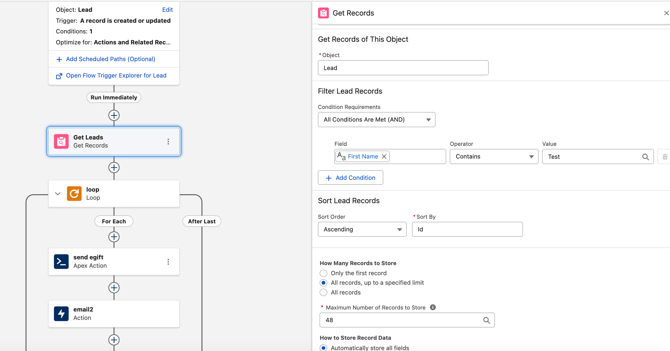
Add a Get Records element to fetch the Contacts or Leads you want to send gifts to.
-
Define your filter criteria (e.g., campaign members, specific attributes, etc.)
-
This will return a collection of records
2. Add a Loop Element
Add a Loop element to iterate over the collection.
-
Collection Variable: Select the records returned from “Get Records”
-
The loop will process one record at a time
3. Add the Send Gift Action Inside the Loop
Inside the loop, add one of the following actions:
-
CG Send E-Gift Invocable 2.0
-
CG Send P-Gift Invocable 2.0
Set the required fields, and most importantly:
-
Recipient Record Id = the current item from the loop (e.g., Contact Id / Lead Id)
This ensures each record receives its own gift.
4. (Optional but Recommended) Handle Limits
Salesforce Flows have a limit of 50 action calls per flow.
If you are sending gifts to more than 50 recipients:
-
Split into multiple flows or batches
-
Or trigger flows in smaller groups
🚨 What Happens Without a Loop?
If you pass a collection of records directly into the action without a loop:
-
Only the first record will be processed
-
All other recipients will be ignored
See full video instructions here: https://www.loom.com/share/9bd1e6cd974d411b9ce1d1dcc7d2dce7